Installing R and RStudio
A Slower Introduction to R
Yea-Hung Chen, PhD, MS
UCSF Library
Thursday, October 9, 2025
An overview
An overview
- you will need to install two software applications:
- R
- RStudio
- you should install the software in that order
- allow yourself roughly 1 hour or the entire process
- you may reach out to me (yea-hung.chen@ucsf.edu) if you get stuck or have questions 🤔
Follow the instructions for your type of computer
- the installation process differs depending on what type of computer you are using:
- Mac (such as a Macbook Air)
- Windows (sometimes known simply as “PC”)
- in the slides that follow, follow the instructions for your type of computer
Installling R
Installing R on a Mac computer
- in a web browser, visit cran.r-project.org
- click the link for macOS
- within the latest release section, click the appropriate link for your computer:
- if you are using a newer computer (M1, M2, M3, or M4 chip), select the first file
- if you are using an older computer, select the second file
- open the downloaded file, and click through the windows
Installing R on a Windows computer
- in a web browser, visit cran.r-project.org
- select the link for Windows
- select base
- select the download link at the top of the page
- open the downloaded file, and click through the windows
Installing RStudio
Installing RStudio on a Mac computer
- in a web browser, visit posit.co/download/rstudio-desktop
- click the download link (it should be inside a blue box), under Install RStudio on the right-hand side
- open the
dmgfile, and then drag the RStudio icon to the Applications folder
Installing RStudio on a Windows computer
- in a web browser, visit posit.co/download/rstudio-desktop
- click the download link (it should be inside a blue box), under Install RStudio on the right-hand side
- open the
exefile and click through the prompts
Verifying installation
Verifying installation
- open RStudio
- you should see something like this:
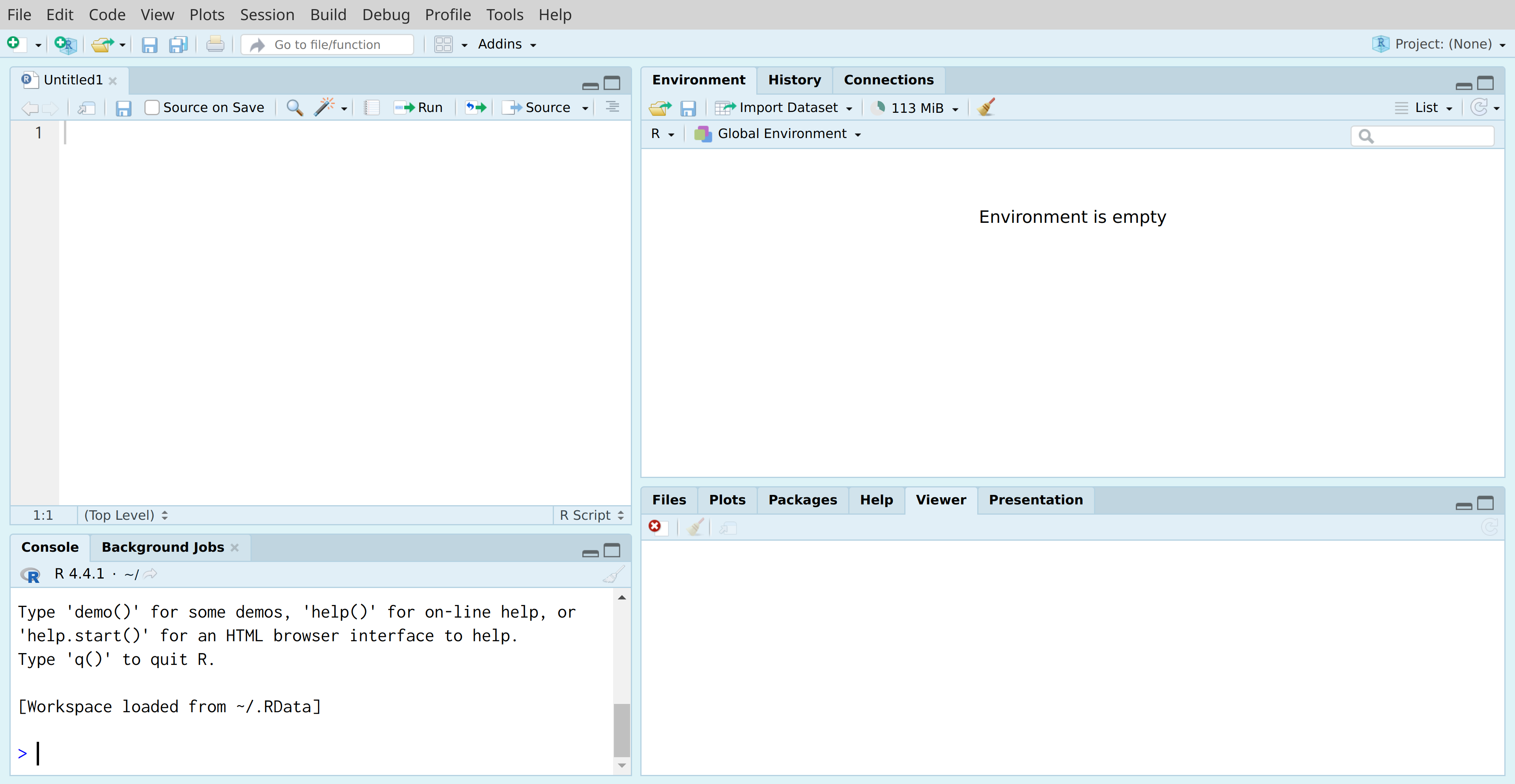
Verifying installation
- please note that what you see probably will not exactly match the screenshot from the prior slide, and that is OK!
- congratulations, you have installed RStudio! 🎉
If you see a pop-up window
- if you are using a Mac computer, you may see a pop-up window about installing command-line tools
- if so, please click to accept
Closing RStudio
Closing RStudio
- when closing RStudio, you might see a pop-up window regarding whether or not you want to save the “workspace image”
- you may select no (do not save)
- we’ll talk about what this means later